How to track your Hearthstone games on Lolumen
Log games by hand in four keys, import a whole session from Hearthstone's Power.log, or let the Mac app track every game. Here is how each works and what each one records.
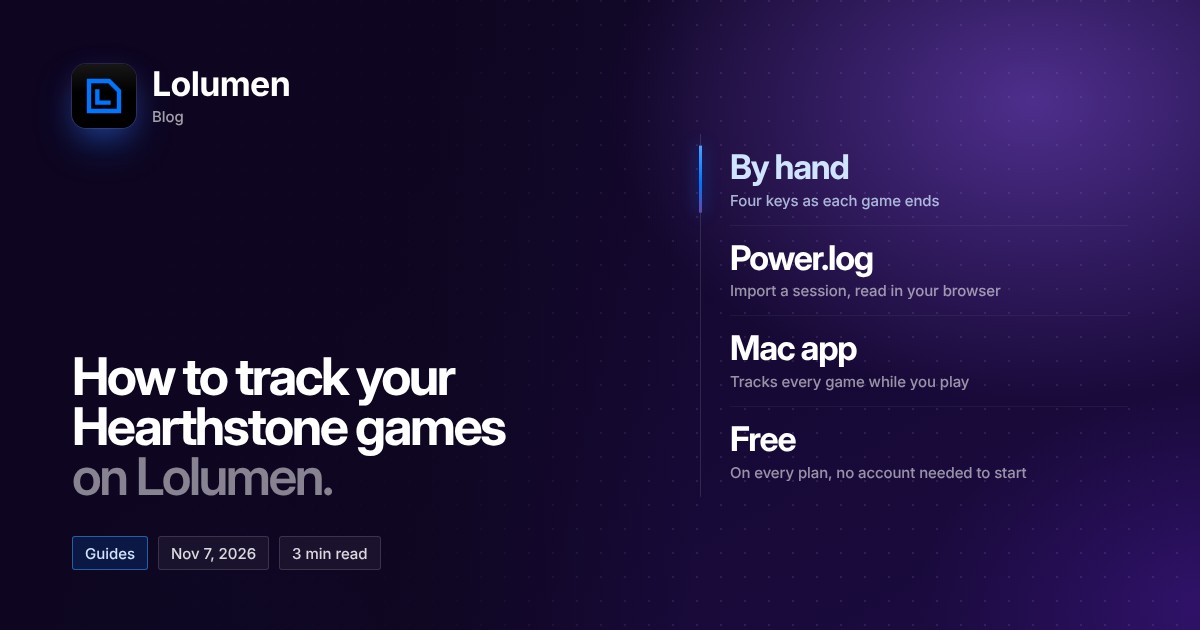
Lolumen's Hearthstone tracker records your games so your deck analytics, matchups and game history reflect how you actually play. You can log games by hand, import Hearthstone's own log file, or let the Mac app track games while you play. Here's how each works and what each one captures.
Three ways to track
By hand
Pick your deck once, then log each game as it ends with four keys: the opponent's class, whether you went first, had the coin or aren't sure, the result, and an undo key. Logging by hand is the fastest way to start, but it records only those facts. It doesn't capture the cards played, your mulligan or the cards you saw.
Power.log import
Hearthstone can write a detailed log of every game, and Lolumen can read it. To turn the log on:
- Close Hearthstone.
- Open
log.config, or create it if it doesn't exist. On Windows it's at%LOCALAPPDATA%\Blizzard\Hearthstone\log.config, and on Mac at~/Library/Preferences/Blizzard/Hearthstone/log.config. - Add this section and save:
[Power]LogLevel=1FilePrinting=trueConsolePrinting=falseScreenPrinting=falseVerbose=true
The log starts with your next session. Each launch of Hearthstone creates a new folder inside Logs in the Hearthstone folder and writes Power.log there. To find that folder, open Battle.net, choose Hearthstone, click the cog next to Play, and pick Show in Explorer or Show in Finder. Drop the Power.log from the newest folder onto the tracker. Older sessions keep their own folders, so you can import them too while those folders still exist.
An import records, for each finished game: both classes, who went first, the turn count, the result, the format and mode, and the date. It also reads the cards each side played, the cards you saw and your mulligan, which is what card performance is built from. Each game is matched to one of your saved decks if that deck contains the cards you played, and you can move any game to a different deck. Unfinished games are skipped, and importing the same games again won't add duplicates. The file is read in your browser and never uploaded. Only the games found in it are saved.
Lolumen for Mac
The Mac app tracks every game automatically while you play. It's a free download and needs macOS 13 Ventura or later. A Windows app is in beta, but new downloads are paused until its installer is signed. Copies already installed keep updating, and the web tracker works on Windows in the meantime.
Do you need an account?
No. The tracker is free on every plan and works signed in or out. Without an account, your games stay in your browser, and clearing your site data deletes them. When you sign in, Lolumen offers to move them to your account.
What happens to your games
- You can export your games as CSV from Game history, and edit or delete any game you've logged. Deleting your account removes all your games.
- In Settings, you can choose whether your ranked games count toward the community numbers on the Hearthstone meta. They always count toward your own analytics.
- Games you add by hand count in your own stats but never in the community numbers.