Log a Hearthstone game in three keys, then find it again
The keyboard shortcuts for logging Hearthstone games by hand on Lolumen's tracker, what else you can record, and how Game history lets you filter, fix and export your games.
Not every game can be imported. You might be on a machine without the Mac app, or you might want a quick record of a session without digging out a log file. For those games, Lolumen's tracker lets you log a result by hand, and most of it can be done from the keyboard. This guide covers the shortcuts, what you can add beyond the basics, and how Game history lets you find and fix what you logged. It only describes what the tracker page and its doc say.
Three keys per game
You set your deck once. It can be one of your saved decks, a deck code you paste, or just your class. After that, each game needs only three things:
- The opponent's class.
- Who went first. If you didn't notice, pick "not sure".
- The result: a win, a loss or a draw.
Format and mode stay as you last set them, so a run of Standard ranked games doesn't need them set again each time. The tracker is free on every plan and works signed out.
The shortcuts
Shortcuts don't fire while you're typing in a field, so a note or a deck code won't accidentally log a game.
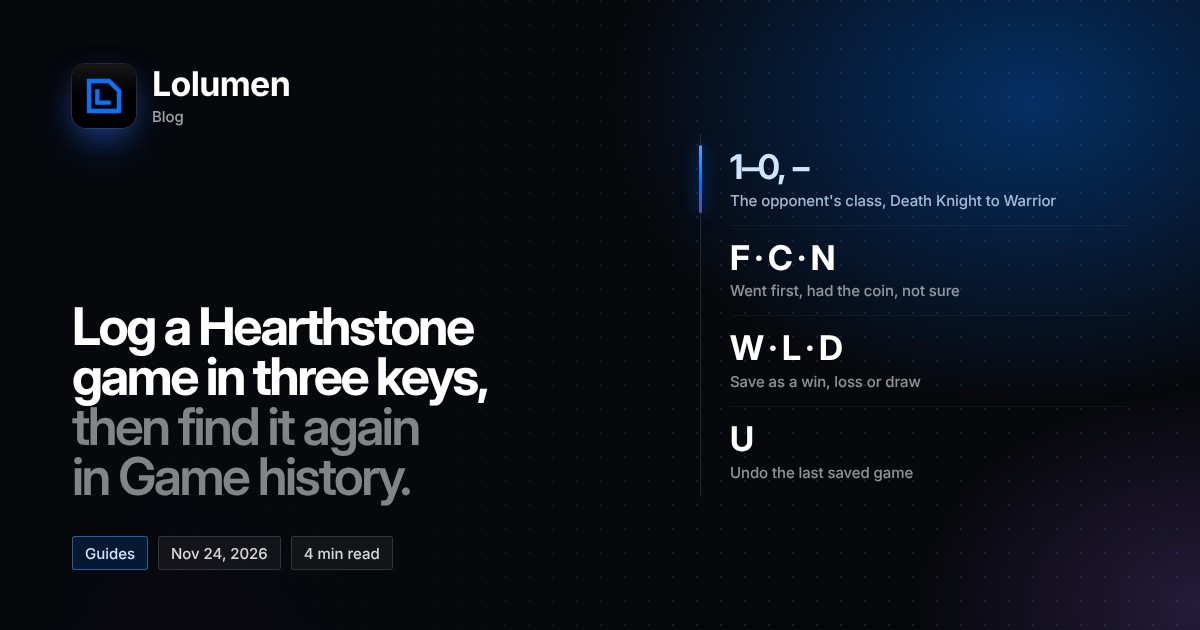
- 1 to 0, then minus: the opponent's class, in the order the classes are listed, from Death Knight to Warrior.
- F: you went first.
- C: you had the coin.
- N: not sure who went first.
- W, L, D: save the game as a win, loss or draw.
- U: undo the last game you saved.
A typical game takes three keystrokes: one for the class, one for the turn order and one for the result. U is the safety net if you misclick on the last game.
What else you can record
You can also add details by hand that the other methods don't always record:
- Your rank or legend rank. The tracker page notes that rank is recorded only if you add it. It lists neither a Power.log import nor the Mac app as recording it.
- The number of turns. This is optional by hand. Imports and the Mac app record it for you.
- A note of up to 500 characters.
Cards played, cards seen and your mulligan aren't among the things you log by hand. Game history shows those for imported games.
Fixing a mistake
Every game you log shows under Recent games. You can edit any detail you logged or delete the game. Your analytics update straight away, so a wrong opponent class doesn't sit in your matchup numbers.
Game history
Signed in, Game history keeps every game you've tracked, on every plan. It's where you go to review a session or clean up your records:
- Filters by format, mode, result, classes, deck, logged or imported, dates, or words in your notes. Filters stay in the address, so you can bookmark a view, such as every ranked loss to one class this month.
- Game details: opening a game shows its notes. For imported games, it also shows the cards played, the cards seen and your mulligan.
- Bulk delete: you can delete several games at once. The page asks you to confirm first.
- CSV export of whatever your filters show.
- A second tab lists your daily puzzle rounds.
Signed out
Without an account, games are kept in your browser and your analytics still work. Clearing the browser's site data deletes them, though. When you sign in, the tracker offers to move them to your account, so you can start logging today and keep the record later.
For the other ways to track, see our tracker guide, which covers the Power.log import and the Mac app.